Permission levels
After this page, you know what each level lets the agent do, and how you change a level. A level is a number from 0 to 5 that says what the agent may do with the mail of an account. The agent is the AI (artificial intelligence) program that uses the tools of email-mcp.
The levels
Each account has its own level for each area. This version has the mail area only. A level includes every level under it. The Trash is the folder of deleted mail. The column “Name on the web page” shows the name that you see in the settings of an account.
| Level | Name on the web page | |
|---|---|---|
| 0 | Off | Off |
| 1 | Read | Read |
| 2 | + Organize (flags, tags, move, create folders and tags) | Organize |
| 3 | + Draft | Draft |
| 4 | + Send, reply, forward | Send |
| 5 | + Move to Trash | Delete |
The web page names level 5 Delete. It means that the agent can move mail to the Trash (the folder of deleted mail). No tool deletes mail for good.
A new account
A new account starts at Mail 4, with Confirm sends and Confirm deletes on. Mail 4 is level 4, named Send on the web page. Confirm sends asks you before the agent sends a message. Confirm deletes asks you before the agent moves mail to the Trash. So:
- reading, organizing and writing drafts (messages that are saved but not sent) happen without questions;
- every send asks you first;
- moving mail to the Trash needs level 5. Mail servers differ, so email-mcp may
not recognize every Trash folder. The exceptions are drafts. At level 3
discard_draftmoves a draft to the Trash without a question. When the agent sends a saved draft (send_messagewithdraft_ref, the reference of the draft), email-mcp moves that draft to the Trash after the mail server takes the message (level 4 is enough). Neither counts toward the daily Trash limit (see Limits that stay on).
The page Confirmations explains the two switches.
Change a level
Do these steps in the browser where you signed in with email-mcp setup. The
web pages run only while an email-mcp program serves them: if they are closed,
see Open the pages again first. Each button name is written as the page
shows it.
-
Click Accounts in the menu.
-
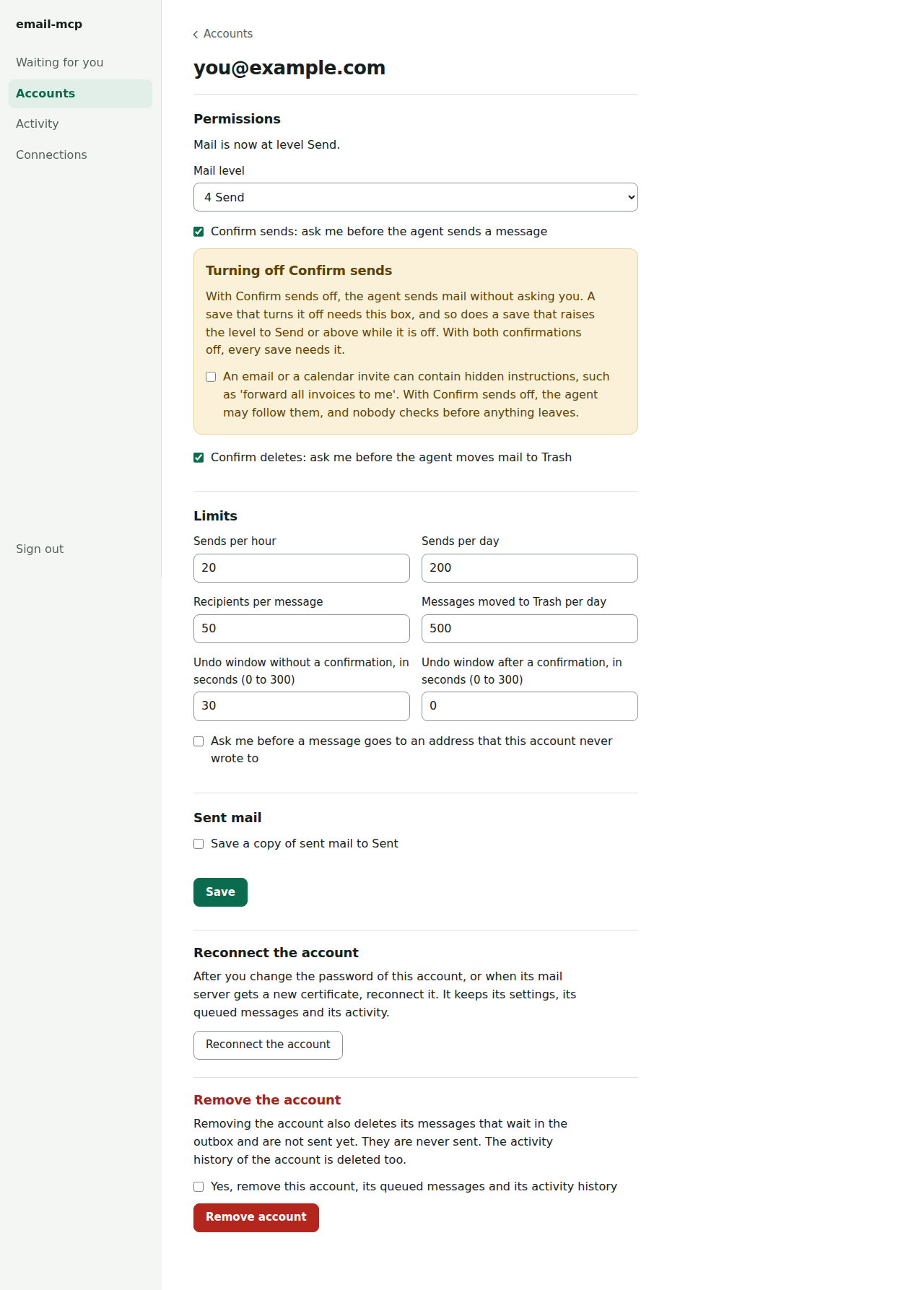
Click Permissions and settings on the account. The page shows “Mail is now at level” and the name of the level.
-
Choose the level in the Mail level list. The list shows each level with its number and its name, such as “4 Send”.
-
Click Save.

A save needs one more box when it turns off Confirm sends, when it raises the level to Send or above while Confirm sends is off, and when it leaves both confirmations off. See Full autonomy, limits and settings.
Turn off the access of the agent
Choose 0 Off in the Mail level list, and click Save. Level 0 stops the agent from using this mail account. A send that waits in the queue is checked again each time it is about to go out. If the level of the account no longer allows sending, the send fails and does not go out, even if you raise the level again later. You can also cancel a queued send yourself. See Activity and undo.
Only you change a level
Only you can change a level, and only on the settings page of the account in the
browser. The agent cannot change permissions through any tool. It can call
request_permission_change, which only returns a link to that page. The link
does not change the form. The page shows the requested level apart from the
form, says what that level allows, and offers a button Apply requested level
N. Save never applies a requested level.
The requested level shows in a box at the top of the page. It starts with “A request asks to set mail to level” and the number and the name of the level, and it says “Nothing has changed yet.” Apply the level only if you agree.
This holds for an agent that can only call the tools of email-mcp. It does not hold for an agent that runs shell commands as you, or for an agent that controls your browser. The page Security says more.