Your first use
After this page, you know that your setup works, and you have asked the agent
your first question. The agent is the AI (artificial intelligence) program that
uses the tools of email-mcp. A tool is one action that the agent can call, such
as search_messages. An AI app (such as Claude Code) is the program that starts
email-mcp and calls its tools. You also know what to expect when the agent wants
to send mail.
Check that everything works
Run this in a terminal (a window where you type commands). The command checks the data folder (the folder where email-mcp keeps its data), the master key (the key that protects your stored passwords) and every account. For each account, it logs in to the mail servers:
email-mcp doctor
If your master key is a file, set the environment variable EMAIL_MCP_KEK (a
named setting that a program reads from its surroundings) in this terminal
first, with the same value as in the config of your AI app.
It prints one line for each check. Every line should say ok, and none FAIL.
For example:
data directory /Users/you/Library/Application Support/email-mcp: ok
database file: ok
master key (keychain): ok
account mxavsb75q46brlmikhbydlxiyi (you@example.com): ok
The first line names your own data folder. The third line shows where your
master key is: master key (keychain) (the keychain is the password store of
your operating system), or master key (file:...) when the key is in a file. If
a line says FAIL, see Troubleshooting.
Ask the first question
Start your AI app, and ask, for example: “List my email accounts, then show the unread mail of today.” The agent lists your accounts, and then it shows your unread mail from today.
If the agent says that it has no email tools, check that your AI app knows the
email-mcp server. In
Claude Code, /mcp shows
it. Claude Desktop
needs a restart after you change its config file. In
Cursor, VS
Code and the Codex
CLI, open the config file
that the page of the app names, and check that it has an entry named email
that runs email-mcp serve. Then run email-mcp doctor again.
What a new account may do
A mail level is a number from 0 to 5. It says what the agent may do with the mail of an account. The web page names the levels Off (0), Read (1), Organize (2), Draft (3), Send (4) and Delete (5).
A new account starts at mail level 4, named Send, with Confirm sends and Confirm deletes on. Confirm sends asks you before the agent sends a message. Confirm deletes asks you before the agent moves mail to the Trash (the folder of deleted mail). So:
- reading, organizing and writing drafts (messages that are saved but not sent) happen without questions;
- every send asks you first;
- moving mail to the Trash needs level 5. Mail servers differ, so email-mcp may
not recognize every Trash folder. The web page names level 5 Delete. It
moves mail to the Trash, and it never deletes mail for good. The exceptions
are drafts. At level 3
discard_draftmoves a draft to the Trash without a question. When the agent sends a saved draft (send_messagewithdraft_ref, the reference of the draft), email-mcp moves that draft to the Trash after the mail server takes the message (level 4 is enough). Neither counts toward the daily Trash limit (the most messages that the agent may move to the Trash in one day).
See Permission levels for the full list.
Try a send (optional)
Do this to see the approval step. The agent sends a message to your own address, so nobody else gets it.
-
Ask the agent to send a short message to your own address. For example:
Send a short test message to you@example.com. Use your own address in place ofyou@example.com. -
Your AI app asks you in one of two ways.
- If your AI app shows a small form with one box, “Confirm”, read the message in the form. Tick the box to confirm.
- Otherwise, the agent tells you that the send waits for your approval, and
it gives you a link. Open the link in the browser that
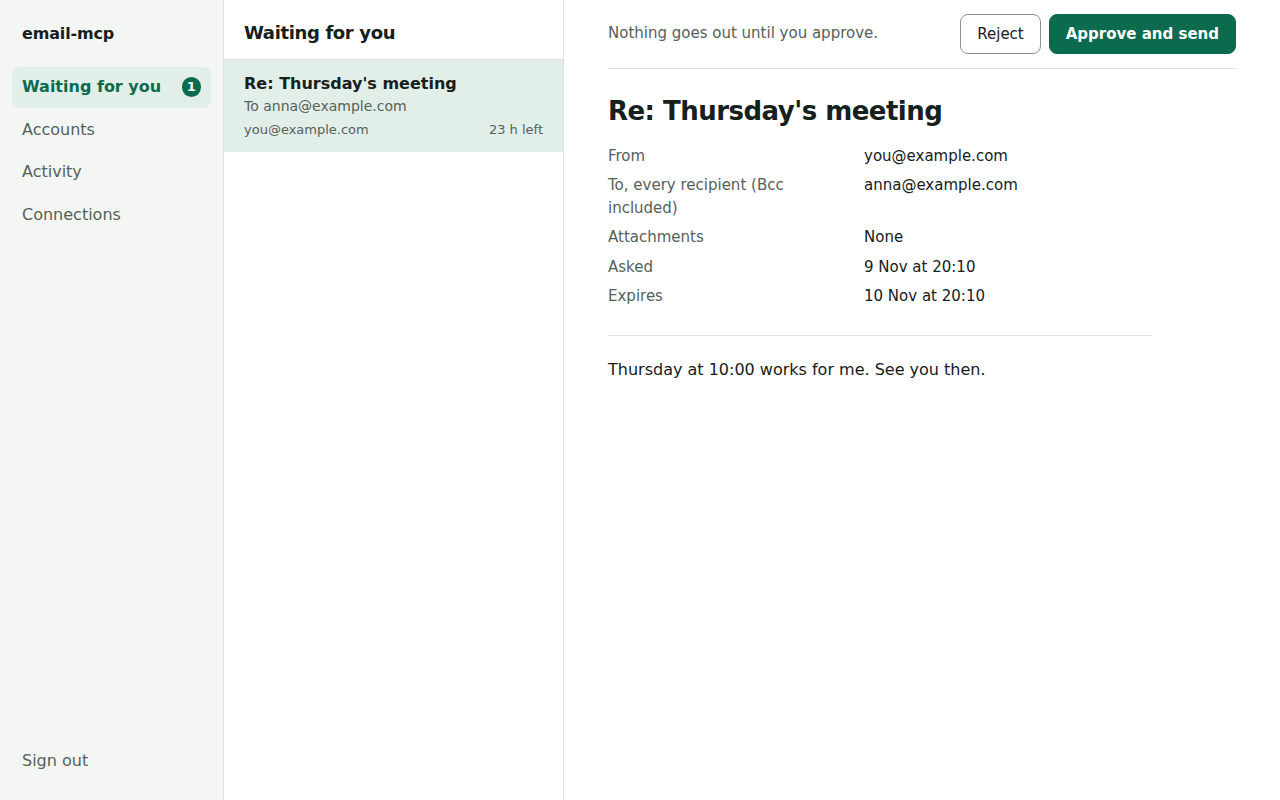
email-mcp setupsigned in. It must also be a browser that no agent controls (see Security). The page Waiting for you shows the whole message, with the buttons Reject and Approve and send. The link expires after 24 hours.
-
Click Approve and send. The page shows Sent, and the text “The mail server accepted the message.” Click Reject instead if you do not want to send the message. Then nothing is sent.
If you answered in the form of your AI app, there is no page to click. The message is sent when you submit the form with the box ticked, and the result goes to the agent. If you do not want to send the message, do not tick the box: every other answer is a no, and nothing is sent.

The email-mcp program that runs for your AI app serves the approval page.
email-mcp setup does not need to run, so you can stop it. When the AI app
starts email-mcp itself (over stdio: the AI app starts the program and talks to
it directly, with no network), the link works while the AI app keeps email-mcp
running. If you close the AI app, the link stops working. With local HTTP (see
Local HTTP mode), the email-mcp serve --http that you started serves the page, and the link works while it runs. To
open the other web pages later, see Open the pages
again.
Your browser must still be signed in. If the page says “Run email-mcp setup in
a terminal, then open this link again.”, do that: run the command, open its
sign-in link, and open the approval link again.
The agent can check the result with get_send_status. This tool shows whether a
send is queued, sent, failed, or waiting for approval. It can also say that a
send is being sent, cancelled, declined or expired. See What the agent can
do for all eight states.
Where to go next
- Permission levels explains what the agent may do.
- Confirmations explains when a send or a move to the Trash waits for you.
- Security explains what email-mcp protects against.